
1. What is Tacking?
Tacking is a preparatory welding step used to temporarily hold parts in place before the full weld is performed. In traditional workflows, this task is typically done manually to ensure the workpieces stay aligned throughout the welding process.
With SmoothTool, Tacking becomes a fully integrated part of your cobot program. This eliminates the need for manual tacking, streamlines your workflow, and ensures consistent placement for optimal weld quality.
2. Core Functionality
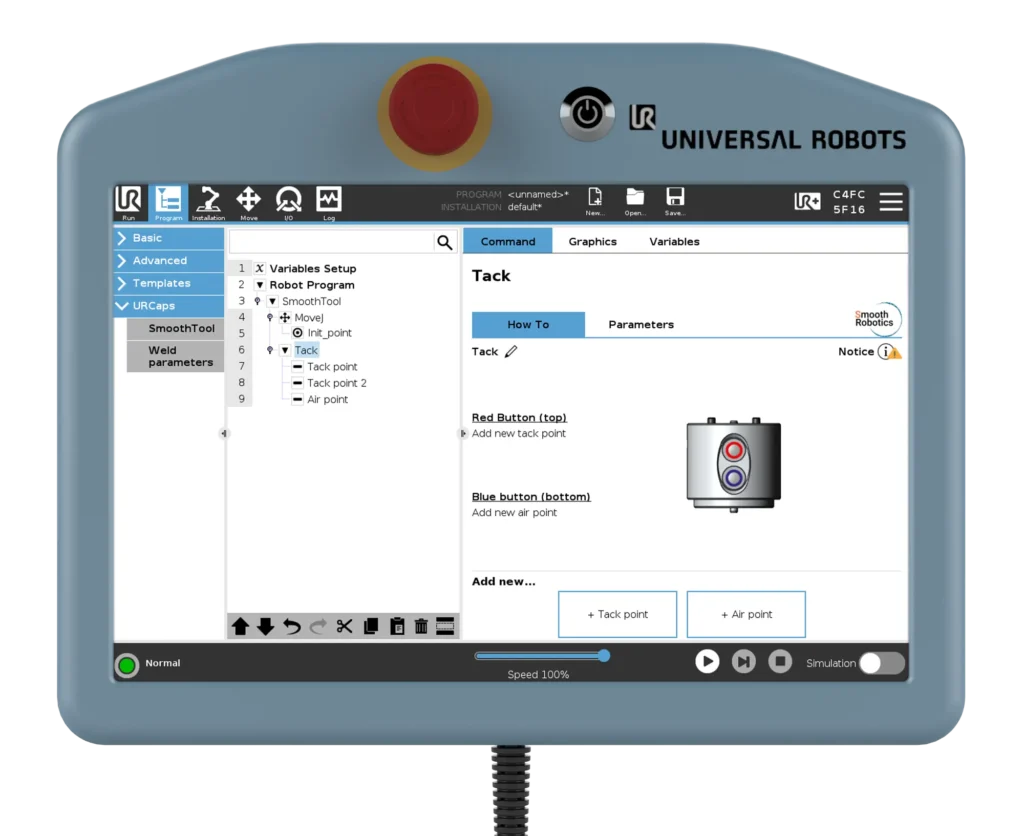
The Tack feature in SmoothTool lets you insert a dedicated Tack node in your program. Within this node, you can:
- Add Tack points using the red button on the SmoothTool programming flange.
- Add optional Air points (non-welding movement points) with the blue button to guide the robot around obstacles or retract between points.
Each tack point can be fine-tuned with parameters such as Tack time and Torch retraction. You can either adjust settings globally for all tack points or set them individually.
3. Key Benefits
- Removes the need for manual tacking, reducing labor and setup time.
- Improves consistency and tack placement across workpieces.
- Avoids fixture movement or misalignment during the welding process.
- Faster workflow and complete cobot-controlled weld cycles from start to finish.
4. Use Case Example
Imagine a small manufacturing shop producing frames for heavy equipment. The operator used to manually tack the parts before running the welding program. With SmoothTool’s Tack feature, the operator now programs tack points with the cobot using the programming flange.
This means they can simply set the parts, press a button to define tack points, and let the cobot handle the entire process—start to finish—saving significant setup time and improving repeatability.
5. Pro Tips & Best Practices
- Use Air Points sparingly: Only include them where necessary to avoid collisions or large movements.
- Set appropriate retraction values to prevent the torch from touching the material after each tack.
- Adjust tack time based on material thickness—shorter for thin sheet metal, longer for thicker sections.
- If you want different tack settings on different points, disable Shared Parameters on the individual tack nodes.
6. How to Access This Feature in SmoothTool
- Go to the SmoothTool main node in the programming tree.
- Press “Tack” to add a Tack node to your program.
- Use the programming flange to set points:
- Red button: Add a Tack point.
- Blue button: Add an Air point (optional).
You can adjust global tack parameters by selecting the Tack node and opening the Parameters tab. For per-point customization, select an individual point and uncheck Shared parameters.
7. Why It Matters
Tacking is often the missing link in automation—manual intervention adds time, introduces variability, and reduces efficiency. With SmoothTool’s Tack feature, the entire welding process—from positioning and tacking to final welds—can be fully automated, even by less experienced operators.
This feature not only increases speed and repeatability but also improves your workflow’s overall consistency, reliability, and safety.
Tacking built into your cobot program
With SmoothTool, your operator adds tack points with the programming flange and the cobot runs the whole weld cycle. A partner near you builds and installs the complete cell.
Related reading: Stitch feature · Weaving feature