
1. What is the Offset Feature?
The Offset feature in SmoothTool allows you to easily duplicate and relocate parts of your welding program. Whether you’re welding multiple identical components in one setup or shifting your program to a new position on the workpiece or jig, Offset gives you the tools to do it precisely and efficiently. Instead of reprogramming from scratch, you can reuse your proven welds with a simple transformation.
2. Core Functionality
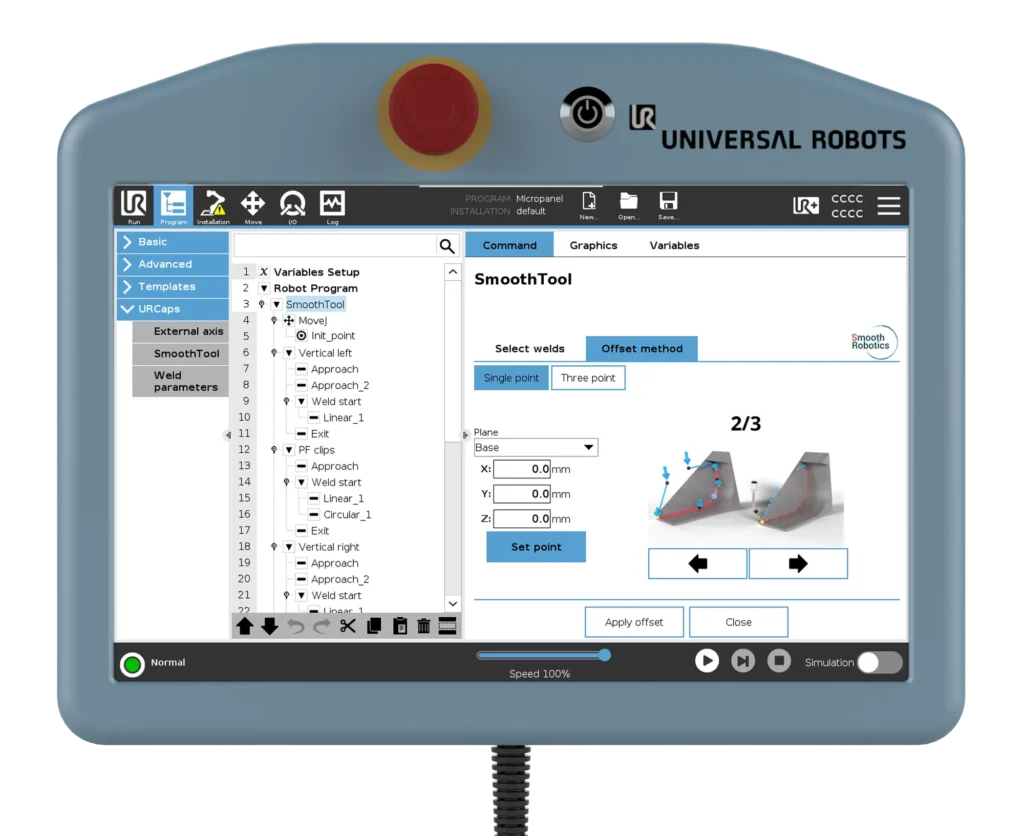
Offset works by defining a transformation between reference points in your original program and new positions on your workpiece. There are two offset methods:
- Single Point Offset: Apply a pure translational shift in X, Y, and Z directions.
- Three Point Offset: Apply a full positional and rotational transformation using three pairs of reference points.
Once the transformation is defined, SmoothTool will replicate the selected program templates and apply the defined offset—either as a true copy or by moving the original program.
3. Key Benefits
- 🔁 Reuse Programs Efficiently – Duplicate and reposition weld routines without reprogramming.
- 🎯 High Precision – Use exact coordinate input or teach points directly on the robot.
- ⏱ Time-Saving – Especially valuable for batch production of identical parts.
- 💡 Flexible Setup – Supports both simple and complex repositioning needs using either one or three reference points.
4. Use Case Example
Imagine you’re welding several identical brackets positioned at regular intervals on a large panel. With the Offset feature, you only need to program the weld path once. Then, using the offset feature, you can teach the robot where each bracket is located, and SmoothTool will apply the correct transformation automatically—allowing the cobot to execute identical welds at each position with minimal user input.
5. Pro Tips & Best Practices
- 🧭 When using the three-point method, your reference points must:
- Be three unique points.
- Not lie on a straight line (to allow rotational transformation).
- 📐 For increased accuracy, define your offsets using taught points rather than manual coordinate entry.
6. How to Access This Feature in SmoothTool
- From the SmoothTool main page, select the Offset feature.
- Use the Select Welds tab to choose which templates should be duplicated and offset.
- Under the Offset Method tab, choose either:
- Single Point Method: Enter or teach an X/Y/Z shift.
- Three Point Method: Teach three reference points and their destination locations.
- Once a valid transformation is defined, press Apply Offset.
- On the Preview & Apply page:
- Choose whether to copy or move the program.
- Confirm your selection and apply the offset.
7. Why It Matters
The Offset feature streamlines your workflow by allowing repeatable welding operations with minimal effort. It reduces setup time, avoids programming errors, and increases productivity—especially when working with fixtures or multiple identical parts. Whether you’re relocating a program for a new job or scaling your output, Offset ensures your cobot remains efficient, flexible, and easy to use.