
Precision Control for Layered Welds
1. What is the Multipass Feature?
The Multipass feature in SmoothTool makes it easy to create complex, layered welds—whether you’re filling deep grooves, building up material, or meeting specific joint strength requirements. Once you’ve taught your base pass, SmoothTool can 1-click-generate the additional passes you need, with full control over angles, parameters, timing, and layout.
This system goes far beyond just stacking layers. With advanced features like multipass profile, crop and extend, parameter editing, and start-point selection, you get the tools you need for precise, reliable, and repeatable multipass welding.
2. Core Functionality
- ➕ Generate multiple passes from a single taught base pass
- 📐 Set travel and work angles for each individual pass
- 🔁 Reuse pass structures across similar parts with Multipass Recreate
- ✂️ Crop or extend individual passes with fine-tuned control
- 🧭 Start from any point using the 3D viewer—no need to restart the program
- 🔥 Control delay between passes to manage heat input
- ⚙️ Edit weld parameters between passes—and even within a single pass
- 🪞 Mirror passes to quickly build symmetrical fill patterns
3. Key Benefits
- 🎯 Consistent weld quality – accurate layer control across all passes
- ⏱️ Save time – reusable profiles and automated path generation speed up setup
- 🌡️ Better heat management – control inter-pass delay to protect sensitive materials
- 🧠 Greater flexibility – edit weld parameters per pass or mid-pass
- 🔁 Resilience in production – restart welding from any point after interruptions
- 🧩 Custom-fit welds – tailor each pass for joint shape, strength, and access
4. Use Case Example
A heavy equipment manufacturer frequently performs a complex groove weld on a recurring part—one that requires multiple precisely angled passes to meet strength and compliance requirements. The first time they set it up in SmoothTool, the programmer used the Multipass feature to easily create all the layers, fine-tune the angles, and adjust inter-pass settings.
Now, with new batches coming in, the team doesn’t have to redo anything from scratch. Using Multipass Recreate, they apply the saved weld structure to the newly taught base path—cutting setup time down to minutes. This not only ensures consistency across parts, but also frees up valuable engineering hours that would otherwise be spent reprogramming.
5. Pro Tips & Best Practices
- Use Multipass Recreate when welding similar components with varying shapes
- Combine Crop and Extend with mirrored passes to handle groove ends more efficiently
- Use parameter edits within a pass to adapt to changes in part geometry
- Fine-tune inter-pass delay when welding heat-sensitive materials
- Always verify angle settings for each pass—they’re crucial for joint integrity
6. How to Access This Feature in SmoothTool
Multipass welding is accessed directly from the main SmoothTool node.
To create a multipass weld:
- Go to the SmoothTool node in the program tree
- Add a new weld using the Multipass template
- Teach the base pass as you normally would
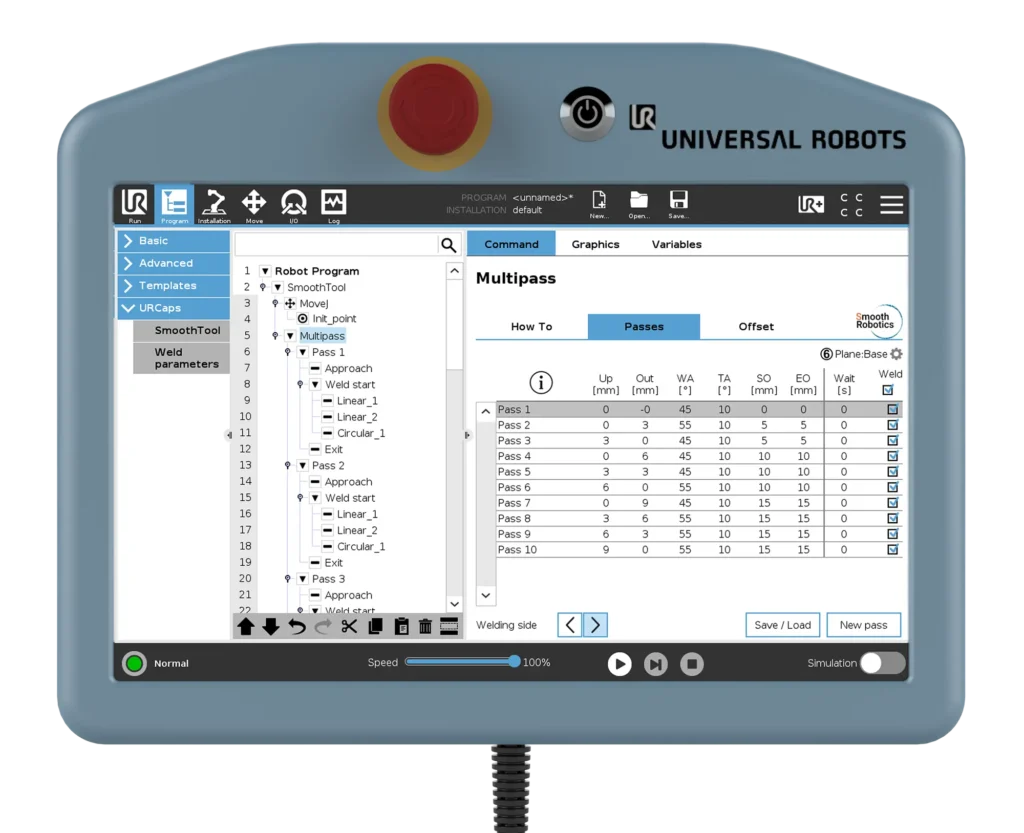
- Use the Multipass tab to define the number of passes, angles, delay between passes, and more
- Use the table view to crop, extend, mirror, or edit individual passes
- Save your setup as a reusable Multipass profile using Multipass Recreate for future jobs
- Optionally, resume or continue welding from any pass using Start Point Selection in the 3D viewer
7. Why It Matters
Multipass welding is essential in structural and heavy-duty applications—but it’s traditionally time-consuming and difficult to get right. With SmoothTool’s Multipass feature, you get automation with full control. From parameter tuning and angle setup to heat management and profile reuse, it gives you everything you need to create durable, precise welds—without slowing down production.
👉 Want to see how Multipass could improve your workflow? Let’s set up a demo and walk through your application together.